Welcome to the official ReplyRight configuration guide. This step-by-step walkthrough explains how to set up and optimize every feature in the ReplyRight Chrome extension for Google Messages.
By the end of this guide you will know how to:
- Open and access extension settings
- Create and manage Quick Reply templates
- Configure AI Reply tone, web context, and custom instructions
- Enable and customize Image Saver
- Manage your subscription plan
ReplyRight is built to help you reply faster in Google Messages using keyboard-driven templates and AI-powered suggestions.
1. Opening ReplyRight Settings
To access your settings:
- Open Google Chrome.
- Click the Extensions icon (puzzle piece) in the top-right corner.
- Find ReplyRight in the list.
- Click the three dots next to it.
- Select Settings.
This opens the ReplyRight dashboard where you manage all features and preferences.
2. Quick Replies — SMS Templates
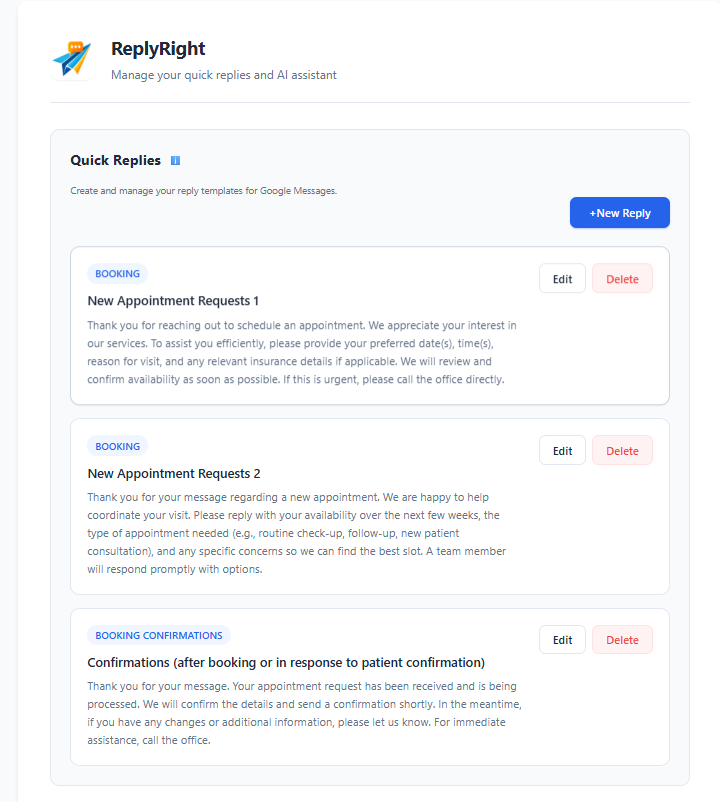
Quick Replies let you create reusable SMS templates that you can instantly insert into any conversation inside Google Messages Web with a single right-click.
Why Use Templates?
Templates are ideal for messages you send often:
- Appointment confirmations — confirm bookings in seconds
- Booking requests — ask for dates, times, and details
- Customer support — answer common questions consistently
- Sales inquiries — respond to leads before they go cold
- Follow-ups — check in after appointments or purchases
Using templates ensures faster replies, consistent messaging, and professional communication — every time.
Creating a New Template
Click + New Reply to open the template editor.
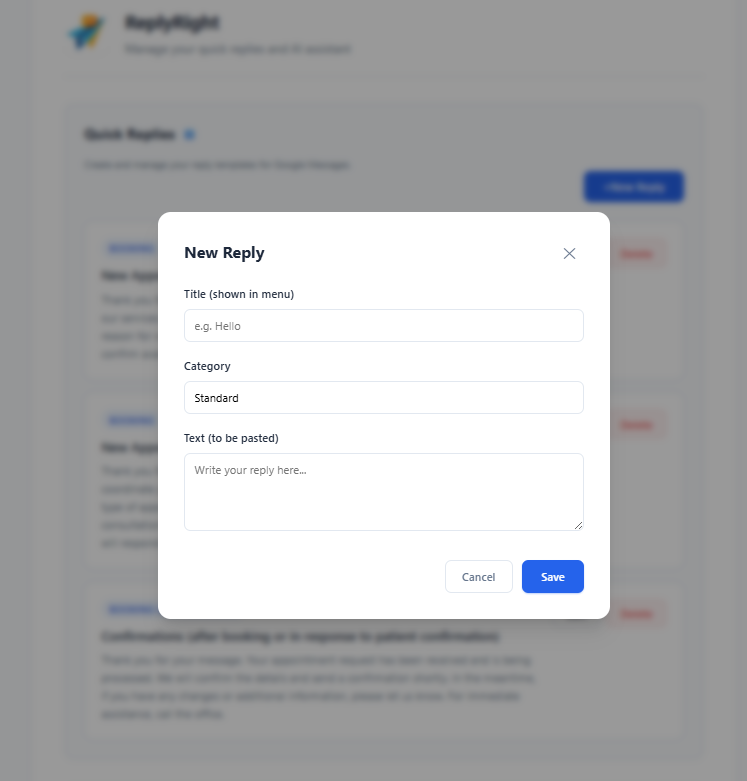
You will configure three fields:
Title (Shown in Menu)
The Title is the name that appears in the right-click context menu inside Google Messages. Keep it short and descriptive so you can find the right template instantly.
Good examples:
- Booking Confirmation
- New Appointment
- Pricing Info
- Support Follow-up
Category
Categories organize your templates into logical groups. When you have many templates, categories help you find the right one fast.
Common categories include:
- Booking
- Support
- Sales
- Confirmations
- Standard
Text (Message to Be Pasted)
This is the actual SMS message that gets inserted into the conversation when you select the template.
Best practices for writing templates:
- Keep it short and clear — SMS is not email
- Include next steps when relevant (e.g., "Please reply with your preferred time")
- Match your brand tone — professional, casual, or friendly
- Avoid long paragraphs — shorter messages get faster responses
Example template text:
Thank you for reaching out to schedule an appointment. Please provide your preferred date(s), time(s), and reason for visit. We will review and confirm availability as soon as possible.
Editing and Deleting Templates
Each template card shows Edit and Delete buttons. Click Edit to update the title, category, or text. Click Delete to remove a template you no longer need.
3. AI Reply Settings (Pro Feature)
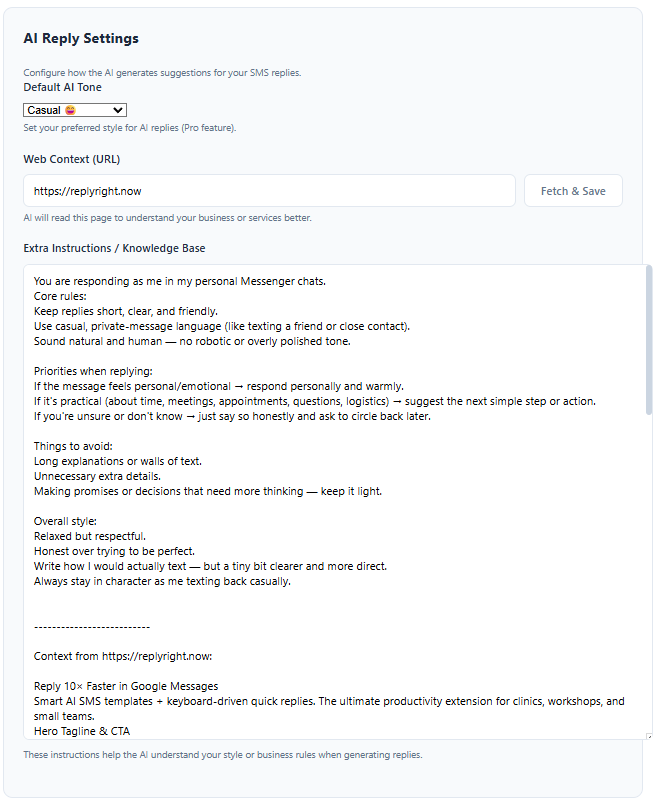
AI Reply Settings let you control how ReplyRight generates intelligent reply suggestions inside Google Messages. This is a Pro feature that uses AI to analyze conversation context and draft responses for you.
Default AI Tone
Choose the tone that matches how you communicate. The selected tone applies to all AI-generated suggestions.
Available tones:
- Professional — formal, business-appropriate language
- Casual — relaxed, friendly, conversational
- Direct — short, to the point
- Friendly — warm and approachable
You can change the tone at any time. The default applies unless you override it per reply.
Web Context (URL)
The Web Context field lets you connect a webpage — like your business website — so the AI can reference real information when generating replies.
How it works:
- Enter your website URL (e.g.,
https://yourbusiness.com) - Click Fetch & Save
- ReplyRight reads the page content and stores it as context
Now when a customer asks about your opening hours, services, or prices, the AI can pull accurate information directly from your site instead of guessing.
This eliminates two common problems:
- Slow replies caused by manually looking up information
- Wrong answers caused by misremembered details
Extra Instructions / Knowledge Base
The Extra Instructions field is your custom prompt for the AI. Use it to define rules, tone preferences, or business-specific knowledge that the AI should follow.
You can include:
- Core reply rules — e.g., "Keep replies under 3 sentences"
- Tone guidelines — e.g., "Sound like a real person, not a bot"
- Priority rules — e.g., "Always suggest a next step for booking questions"
- Things to avoid — e.g., "Never promise specific dates without checking"
- Business info — anything the AI should know that isn't on your website
Example instructions:
Keep replies short, clear, and friendly. Use casual language. If the message is about booking, always ask for preferred date and time. Never make promises about availability.
These instructions persist across sessions. Update them whenever your needs change.
4. Image Saver
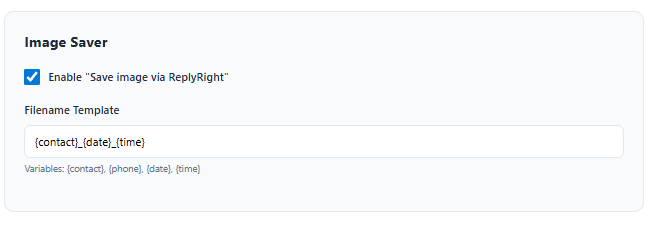
Image Saver lets you download images from Google Messages conversations with a single click via the right-click context menu.
Enable or Disable
Check or uncheck "Enable Save image via ReplyRight" to toggle this feature on or off.
Filename Template
Customize how saved images are named using template variables:
{contact}— the contact name from the conversation{phone}— the phone number{date}— the current date{time}— the current time
The default template is {contact}_{date}_{time}, which produces filenames like John_2026-02-25_14-30.jpg.
This makes it easy to organize saved images by contact and date without manual renaming.
5. Managing Your Subscription
ReplyRight offers two tiers:
Free Tier
- Quick Reply templates (unlimited)
- Image Saver
- All languages supported
Pro Tier (€3.99/month)
- Everything in Free
- AI-powered reply suggestions
- AI tone selection
- Web context awareness
- Custom AI instructions
- Priority processing
- 7-day free trial included
To manage your subscription, upgrade, or cancel, visit the Account page inside ReplyRight settings or use the Stripe Customer Portal link. You can cancel anytime — no questions asked.
Tips for Getting the Most Out of ReplyRight
- Start with 5–10 templates covering your most common replies. Add more as you discover patterns.
- Set your AI tone once and let it handle the rest. Only change it if your communication style shifts.
- Connect your website as web context early. The AI gets dramatically better with real business data.
- Write clear extra instructions. The more specific your rules, the better the AI adapts to your style.
- Pin the extension in Chrome's toolbar for quick access to settings anytime.
Need Help?
If you run into any issues, contact us at: support@replyright.now
We're happy to help you get the most out of ReplyRight.